
Appearance
Customize limit message
Edit the warning messages shown to customers when they reach product, order value, or weight limits. You can also add an extra message below the banner.
This guide will walk you through how to adjust each type of limit message (such as minimum quantity, maximum value, or not logged in message) and how to add an extra message for more details or contact information.
Why Customize Limit Messages
Clear communication is important when customers run into purchasing limits in your store. Standard messages may not always fit your products or business rules, and sometimes they don’t explain enough.
By tailoring your limit messages, you can:
- Explain more clearly why the limits are in place
- Align the wording with your brand’s style and tone
- Suggest alternatives or next steps for customers
- Reduce confusion and unnecessary support requests
Well-written messages not only improve the shopping experience but also make it easier for customers to understand and follow your store policies.
How to customize limit message
Step 1: Accessing the Limit Message Settings
Follow these steps to access the limit message customization area:
- Click on Limit rules in the main navigation menu.
- Select the limit rule that you want to customize messages for, then click Customize to edit the messages.
- Within the rule settings, locate and click on the Translation tab.
The Translation tab is where you'll customize your default message. This centralized location makes it easy to manage all your limit messages from one place. 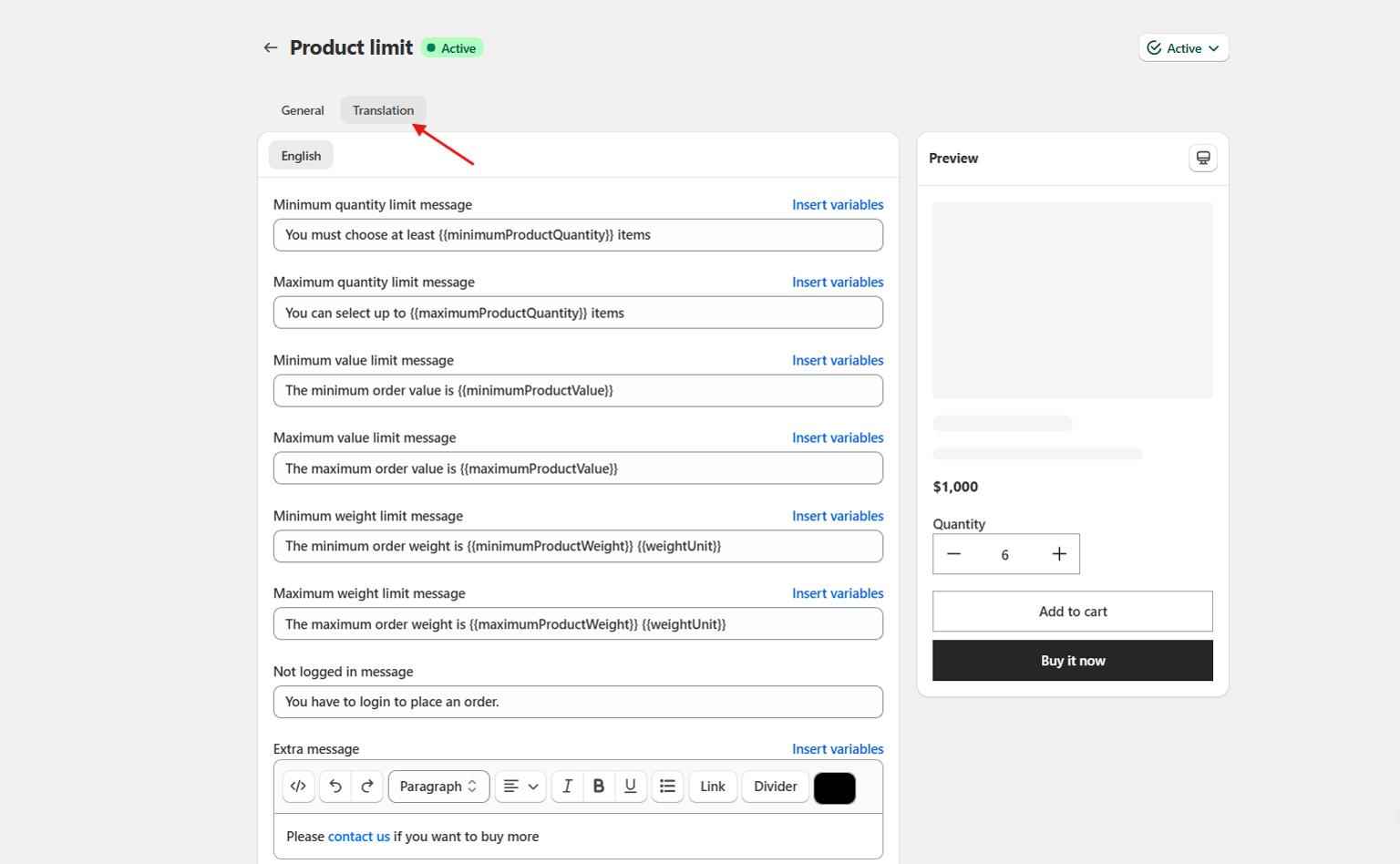
Step 2: Customizing Limit Message
The default limit message is the base notification customers see when they reach a purchase limit. To set it up:
- Go to the Translation tab and find the default message field (by default, in English).
- Enter your custom message. You may want to include:
- A clear explanation of the limit
- The reason for the limit (optional)
- Next steps for the customer
- Use variables like or if supported, so values update automatically.
- Review your message for clarity and tone.
- Click Save to apply your changes.
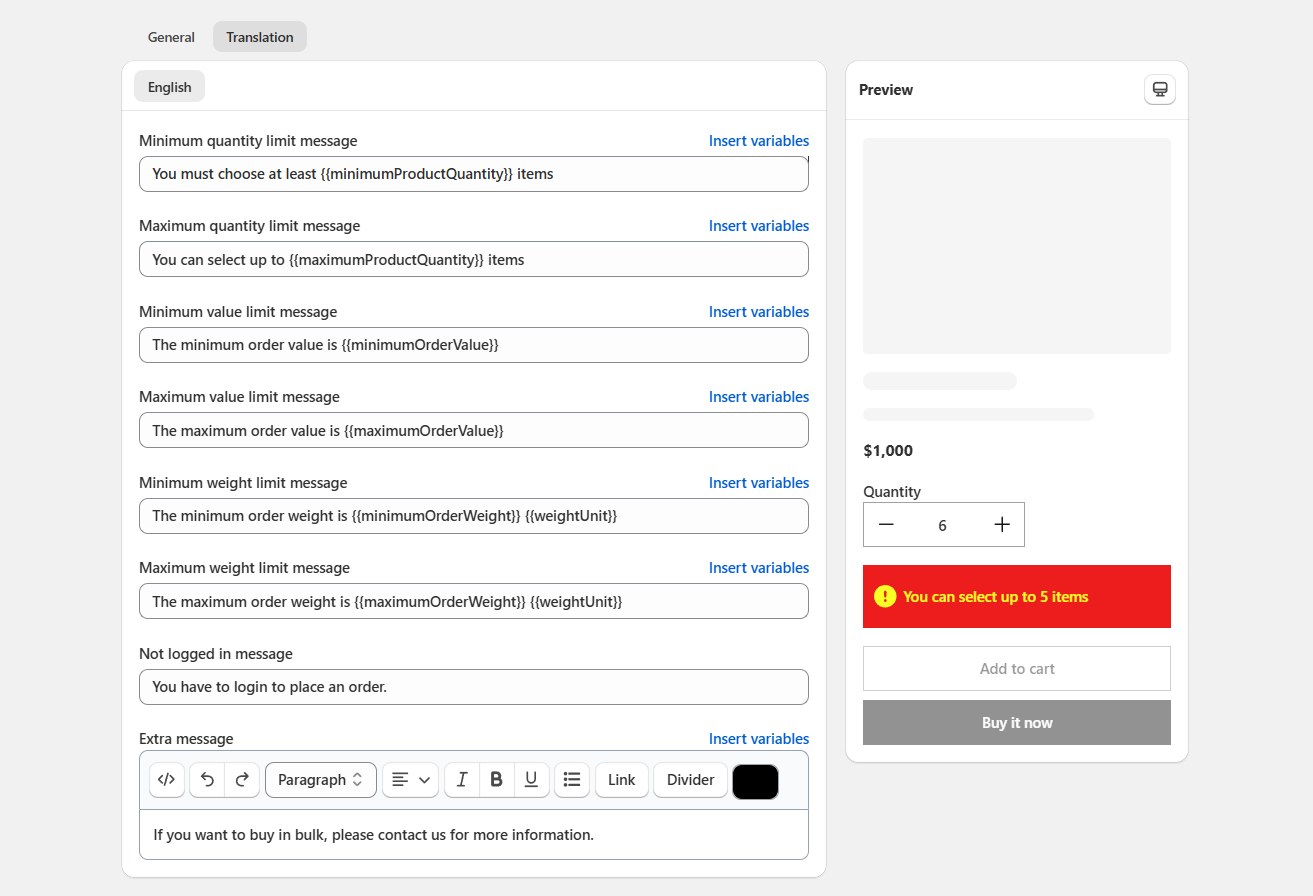
A well-crafted default message serves as the foundation for all your translations and ensures customers understand your policies clearly.
Customize Extra Message
The Additional message field uses a rich text editor, so you can format the extra line shown below the main warning banner — add bold text, links, lists, or a divider — instead of plain text only.
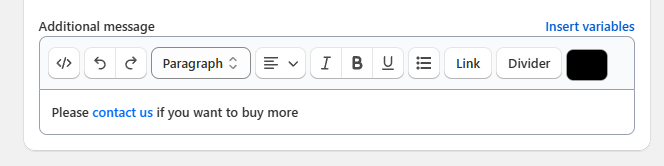
Where to find it
- Open your limit rule (Product, Collection, Order, or Mutual exclusion).
- Go to the Translation tab.
- Scroll down to the Additional message field.
Toolbar reference
| Icon | Name | What it does |
|---|---|---|
</> | Code view | Switch to raw HTML mode, for advanced formatting or pasting existing HTML. |
| ↶ | Undo | Revert your last change. |
| ↷ | Redo | Re-apply a change you just undid. |
| Paragraph ⌄ | Text style | Switch between paragraph text and heading styles. |
| ≡ ⌄ | Text align | Align the message left, center, or right. |
| I | Italic | Italicize selected text. |
| B | Bold | Bold selected text. |
| U̲ | Underline | Underline selected text. |
| ☰ | Bullet list | Turn the selected lines into a bulleted list. |
| Link | Insert link | Turn selected text into a clickable link — useful for phrases like "contact us". |
| Divider | Insert divider | Insert a horizontal line to visually separate content. |
| ⬛ | Highlight / text color | Change the text or highlight color of the selected text. |
| Insert variables | Dynamic variables | Insert placeholder variables that get replaced with real values for each customer/order. |
NOTE
Confirm the exact list of available variables under Insert variables in your version of the app, then replace this note with the real list (e.g. product name, limit quantity, remaining stock).
Example: adding a "contact us" link
This is the most common use of the additional message — inviting customers to reach out if they want to buy more than the limit allows.
- Type your message, e.g.
Please contact us if you want to buy more. - Select the words contact us.
- Click the Link button in the toolbar.
- Paste the URL you want the link to open (e.g. your store's contact page).
- Click outside the editor — the selected text now shows as a clickable link.
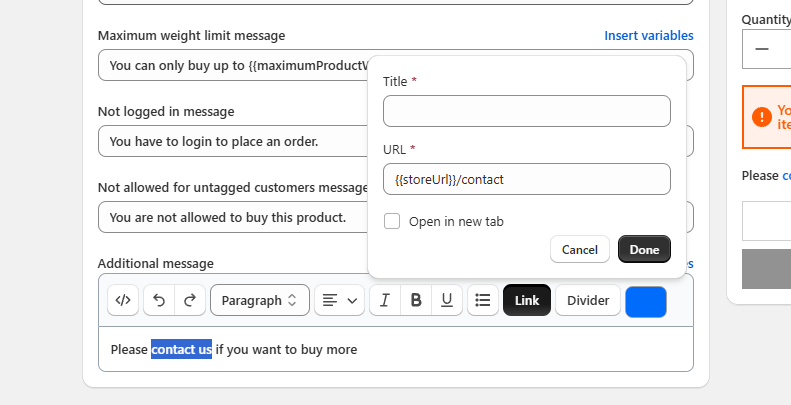
Saving your changes
Click Save at the top (or bottom) of the page to apply your formatted message. It will now appear below the main warning banner whenever the limit rule is triggered.